An updated guide to installing React Native without Android Studio

Certainly, before setting up a React Native development environment you follow the official facebook’s getting started guide, which requires the Android Studio setup, but if you are not an Android native developer, you might want to skip its heavy installation, save some disk space, time and hack things around. 💻🤓

tldr;
How to install React Native without Android Studio:
1. Install JDK8
brew cask install adoptopenjdk/openjdk/adoptopenjdk8
2. Install node and watchman
brew install nodebrew install watchman
3. Download Android SDK
Now instead of installing the whole Android Studio package, we will only use the Android SDK. Start by opening this android developer link, scroll to the “Command line tools only” section, and download the zip file.
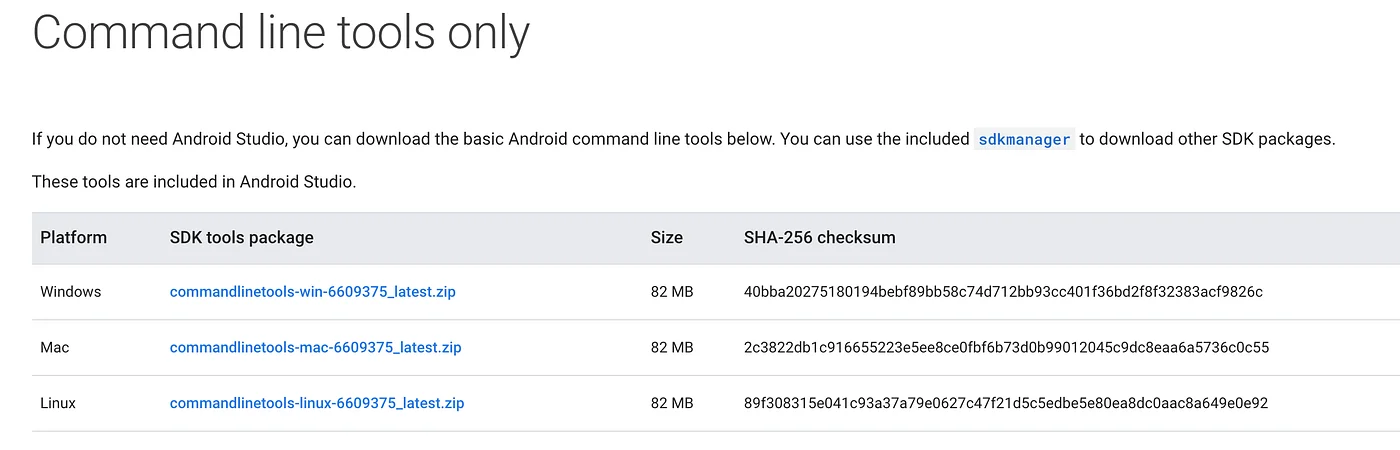
After downloading it, extract the zip file to the following path:
/opt/android/cmdline-tools/
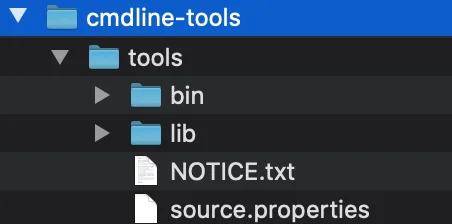
4. Export the ANDROID_HOME environment variable
The React Native tools require some environment variables to be set up to build apps with native code.
Instead of only exporting the ANDROID_HOME to the current session of the terminal, we make sure that it’s permanently added to the terminal by adding the following lines to your $HOME/.bash_profile or $HOME/.bashrc (if you are using zsh then ~/.zprofile or ~/.zshrc) config file:
export ANDROID_HOME=/opt/android
Make sure you restart the bash to apply the changes.
Also, make sure you have writing permissions to the android home folder:
sudo chown -R $(whoami) $ANDROID_HOME
5. Install the required SDK packages
The official React Native environment setup recommends installing the following SDK packages:
Android SDK Platform 29Intel x86 Atom_64 System ImageorGoogle APIs Intel x86 Atom System ImageAndroid SDK Build-Tools 29.0.2
So, instead of selecting these packages from the Android Studio SDK Manager, we will install it using the command line with the following command:
$ANDROID_HOME/cmdline-tools/tools/bin/sdkmanager "platform-tools" "platforms;android-29" "build-tools;29.0.2" "add-ons;addon-google_apis-google-24"
A very useful link is this gist, which keeps track of all the available packages, its description, and its versions.
6. Install platform tools to the path
In a later development, having the command line tools available will make everything easier, so similar to what we did to the ANDROID_HOME environment variable, we add the following lines to the $HOME/.bash_profile or $HOME/.bashrc (if you are using zsh then ~/.zprofile or ~/.zshrc) config file:
export PATH="${ANDROID_HOME}/platform-tools:${PATH}"
Again, make sure to restart the bash.
7. Test the installation
That’s all! 😎
To test if your development environment works, run:
npx react-native init AwesomeProjectcd AwesomeProjectnpx react-native run-android
And it should work fine. Thanks for reading!